Release notes/1.5: Difference between revisions
| Line 74: | Line 74: | ||
=== General === | === General === | ||
[[File:Tool modifiers.png|thumb| | [[File:Tool modifiers.png|thumb|center|x200px|The list of modifier keys for using tools with the mouse is much longer now]] | ||
* Each drawing tool now has a new option for the tool's style when creating a new object: 'Object type's last used style' - i.e. one style for all ellipses, another for rectangles, one for paths (Pen, Pencil, Calligraphy Tools), one for stars, one for text and one for spirals. The option is now set as the default. If you prefer a different behavior, you can change that to one of 'last used style' or 'this tool's own style' in each tool's preference (double-click on tool icon). | * Each drawing tool now has a new option for the tool's style when creating a new object: 'Object type's last used style' - i.e. one style for all ellipses, another for rectangles, one for paths (Pen, Pencil, Calligraphy Tools), one for stars, one for text and one for spirals. The option is now set as the default. If you prefer a different behavior, you can change that to one of 'last used style' or 'this tool's own style' in each tool's preference (double-click on tool icon). | ||
* All keyboard modifiers for tool actions are now customizable in Edit > Preferences > Interface > Keyboard Shortcuts. | * All keyboard modifiers for tool actions are now customizable in Edit > Preferences > Interface > Keyboard Shortcuts. | ||
=== Ellipse / Circle Tool === | === Ellipse / Circle Tool === | ||
| Line 86: | Line 87: | ||
=== Measure Tool === | === Measure Tool === | ||
[[File:Image measurements popup.png|thumb| | [[File:Image measurements popup.png|thumb|center|100px|Options of the Measure tool]] | ||
* Improve Measure Path features (curves, segments, angles) and fix some issues (https://gitlab.com/inkscape/inkscape/-/merge_requests/7812) | * Improve Measure Path features (curves, segments, angles) and fix some issues (https://gitlab.com/inkscape/inkscape/-/merge_requests/7812) | ||
| Line 93: | Line 94: | ||
TODO:Add GIFs | TODO:Add GIFs | ||
=== Node Tool === | === Node Tool === | ||
Revision as of 19:37, 24 November 2026
Release highlights
- Multiple documents open as tabs in the same Inkscape window
- Underline, overline and strike-through available in the Text tool
- Writing text into shapes and along paths now possible with a new Text tool mode: just click on the canvas in the right place
- Fill & Stroke dialog refactored
- Recolor selection makes changing colors of multiple objects at once easy
- New selection cues and additional deselection shortcuts
- Introduction of a new PDF export engine, CapyPDF
- Many more keyboard shortcuts and tool modifier keys can now be configured
- Duplicate pages with the Page tool
- Define stars and polygons by the length of their edges
- Native file chooser dialogs
- Chameleon Fill function picks up colors below selected objects and applies them
- The Unified Font Browser is now the default for all users
- A new type of extensions can now continuously learn about updates to the document and keep running while Inkscape is being used
- Front end migration to GTK 4
- Bugfixes
Unclear Status (investigate):
- New color management system (RGB, LinearRGB, DeviceCMYK, Gray, Lab, Lch, Luv, CMS - Color managed ICC profile based, HSL, HSV, HSLuv, OkLab, OkLch, OkHsl, XYZ)
General User Interface

- Files now open as tabs inside one Inkscape window. This significantly speeds up working with multiple documents. Tabs can be moved to a separate window by right-clicking on their name, then selecting 'Detach to new window' or by dragging them outside the Inkscape window. They can also be dragged and dropped onto the tab bar of another open Inkscape window (https://gitlab.com/inkscape/inkscape/-/merge_requests/6654, https://gitlab.com/inkscape/inkscape/-/merge_requests/8061, https://gitlab.com/inkscape/inkscape/-/merge_requests/8002).
- Many number entry fields now use a new design, which allows you to click into the field, then drag the mouse left or right to increase or decrease the number in the field. Sometimes, the field's label is now also integrated into the field itself. This change comes at the expense of the effort of changing the number by typing into the field requiring more clicks. We would like to ask for your feedback on how this fits into your workflows, as this may benefit some user groups more than others (https://gitlab.com/inkscape/inkscape/-/merge_requests/7577).
- Crash logs are now saved into your Autosave directory, so you can collect them later. They reside next to your autosaves - the directory can be changed in Edit > Preferences > Input/Output > Autosave (https://gitlab.com/inkscape/inkscape/-/merge_requests/8232).
- A new option to only display 'important icons' in menus has been added at Edit > Preferences > User Interface > Theme. This replaces the previous option that adjusted the icon visibility according to your desktop environment's settings.
- Mouse cursors now adapt to highDPI displays (https://gitlab.com/inkscape/inkscape/-/merge_requests/7266).
Canvas
Fading Objects
When inside a group or a layer, you may want to focus on that layer or group. The new 'Fade other objects on canvas' option, which you can find in the Object dialog's settings as well as in the Preferences dialog's section for the Selector tool, makes other objects translucent. It provides the following options:
- never fade anything (like in previous Inkscape versions)
- fade all objects outside the group you're currently working in (default)
- fade all objects outside the current group (if you are inside one) and also outside the current layer, when you are on the top level of a layer
(https://gitlab.com/inkscape/inkscape/-/merge_requests/6148)
Context Menu
- Right-click menus have special paste option added (https://gitlab.com/inkscape/inkscape/-/merge_requests/6914).
Warnings
- Clipboard warnings now appear directly on the canvas. This means that when you're, for example, trying to paste a path effect when there is none on the clipboard, or when you are trying to paste text content directly on the canvas, you will now see a message flash up in a box near the top of the canvas (https://gitlab.com/inkscape/inkscape/-/merge_requests/8257).
Handle colors
In Edit > Preferences > User Interface, there is now a list of predefined color themes for tool handles, including a preview that also reflects the selected handle size. Options range from Azure to Crimson, Spruce, Violet, Gold, Steel, Negative or Custom.
Custom means that Inkscape will use a file named 'handle-theme-custom.css' that you can copy from the share/inkscape/ui/ folder to the ui folder in your configuration directory and edit to your heart's content, following the schema present in the file 'node-handles.css'. That file not only allows you to adjust the colors, but also the shapes of handles.
If your Inkscape packaging format does not allow you access to these files easily (e.g. AppImage, dmg, flatpak), you can grab them from Gitlab.
Grids
- The option to have a different color for major and minor grid lines has been removed both in the default grid settings in the preferences as well as in the concrete grid settings in the Document properties dialog. Grids now have a uniform color. Major grid lines are slightly thicker than minor ones.
Tools
General

- Each drawing tool now has a new option for the tool's style when creating a new object: 'Object type's last used style' - i.e. one style for all ellipses, another for rectangles, one for paths (Pen, Pencil, Calligraphy Tools), one for stars, one for text and one for spirals. The option is now set as the default. If you prefer a different behavior, you can change that to one of 'last used style' or 'this tool's own style' in each tool's preference (double-click on tool icon).
- All keyboard modifiers for tool actions are now customizable in Edit > Preferences > Interface > Keyboard Shortcuts.
Ellipse / Circle Tool
- The tool controls of the Ellipse tool now have fields for the x and y coordinate of the centre point, so you do not need to rely on snapping anymore to precisely place a circle / arc / ellipse /segment / ... anymore (https://gitlab.com/inkscape/inkscape/-/merge_requests/7793).
Measure Tool

- Improve Measure Path features (curves, segments, angles) and fix some issues (https://gitlab.com/inkscape/inkscape/-/merge_requests/7812)
- Add path segment measurement to ruler tool (https://gitlab.com/inkscape/inkscape/-/merge_requests/7804)
- Added new options in to pop up in a toolbar of Measurements tool. You can change Display options. And we also added ability to copy selected measurement as a text.
TODO:Add GIFs
Node Tool

- When you select exactly two nodes, a field labelled 'D' will appear in the Node tool's tool control bar. Here you can set the distance between those two nodes (not the length of the path between them, but the straight distance). The nodes will move relative to either the first selected node, or – when the nodes have been selected by click+drag – the midpoint of an imaginary straight line between them (https://gitlab.com/inkscape/inkscape/-/merge_requests/6600).
- Selection highlighting:
- a light blue rectangular or arbitrarily shaped (while holding Alt) selection area when clicking and dragging to select nodes
- a light red rectangular or arbitrarily shaped selection area when clicking and dragging to remove nodes from the current selection (Ctrl + Shift, Ctrl + Alt + Shift)
- a grey selection area when inverted selection is used (Ctrl, Ctrl + Alt)
- When pressing Ctrl+C accidentally with nothing new selected, the current Node tool selection is not going to be lost anymore (https://gitlab.com/inkscape/inkscape/-/merge_requests/8315).
Keyboard Modifiers
All Node tool keyboard modifiers can now be customized in the preferences (https://gitlab.com/inkscape/inkscape/-/merge_requests/8148).
Some modifiers have changed or were added:
- Alt + click on a handle now retracts that handle (previously: Ctrl + click)
- Shift + drag a handle of a non-corner node now makes the handles on both sides the same length (https://gitlab.com/inkscape/inkscape/-/merge_requests/6492)
- Alt + drag a single node moves the node along the previous path (before the node has been moved - Alt + drag multiple nodes still sculpts nodes) (https://gitlab.com/inkscape/inkscape/-/merge_requests/8040)
- To avoid shortcut collisions with zooming while the mouse pointer is over a node, "Linear node selection" goes from Ctrl + scroll to Shift + Ctrl + scroll and
- "Spatial node selection" goes from Scroll to Shift + Alt + scroll (https://gitlab.com/inkscape/inkscape/-/merge_requests/8019)
Note that any node tool shortcuts using Shift also temporarily disable snapping.
Node Deletion Settings
In the Preferences section for the Node tool, there is now a whole section dedicated to what happens when you delete a node, and which keyboard modifiers you need to achieve a specific result. The angle that determines which node deletion algorithm will be used for cusp nodes is now also configurable (default 135°). There are options for what happens when you hold Alt, Ctrl or Shift while pressing Del to delete nodes, and for what should happen when you use Ctrl + X to cut out nodes.
Page Tool

- A new right click context menu allows you to move pages (change their page number), create a new page (at the end of the document), duplicate the current page (to end of document) or delete the current page (https://gitlab.com/inkscape/inkscape/-/merge_requests/6215).
- The new 'Duplicate Page' button creates a copy of the current page with all its contents, puts it into the document as the last page and jumps to the duplicate.
- When opening a document, the last page is now automatically selected (instead of the first - but the view is the same as when you saved the document)(https://gitlab.com/inkscape/inkscape/-/merge_requests/8135).
- When dragging on a page corner, the page can now be freely resized in all directions instead of giving unexpected results previously (https://gitlab.com/inkscape/inkscape/-/merge_requests/8042).
Selector Tool
Deselect
You can now deselect objects from selection more easily:
- Ctrl+Shift+drag: Removes objects from selection
- Ctrl+Shift+Alt+drag: Removes objects from selection with touch selection
Selection Frames

The selection areas are now highlighted on the canvas when clicking and dragging to select objects (https://gitlab.com/inkscape/inkscape/-/merge_requests/6336).
- a light blue rectangular selection area: when clicking and dragging in the standard 'lasso' selection mode (selects everything that is completely within the selection frame)
- a striped light blue rectangular selection area: when clicking and dragging the 'touch' selection mode (selects every object inside the frame plus every object that at least touches the frame borders)
- a light pink rectangular selection area: when clicking and dragging to deselect objects that are inside the selection frame
- a striped light pink selection area: when clicking and dragging to deselect objects that are fully inside or touching the selection frame
- a blue instead of a red line is now used when drawing over objects to select them
- a pink line is now showing when you deselect touched objects
(https://gitlab.com/inkscape/inkscape/-/merge_requests/6336, https://gitlab.com/inkscape/inkscape/-/merge_requests/7156, https://gitlab.com/inkscape/inkscape/-/merge_requests/7164)
Star / Polygon Tool

You can set length of the side edge of the polygon and star numerically from the toolbar (https://gitlab.com/inkscape/inkscape/-/merge_requests/6920).
Spiral Tool

The spiral's rotation center is now set to the inner starting point of the spiral. Previously, it was set to the center of the spiral's bounding box (https://gitlab.com/inkscape/inkscape/-/merge_requests/6870).
Text Tool

Text_tool_on_objects_writing_mode.gif (too large for Wiki upload)
- Placing text on a path, or letting it flow inside a shape is now directly available by activating the mode for 'Placing text inside objects or on path edges' and then clicking in the right place and starting to type. For the case that you need text to flow into multiple shapes, the menu item 'Flow into Frame' is still available (https://gitlab.com/inkscape/inkscape/-/merge_requests/8216).
- A new arrow-shaped handle allows you to change which side of the path text-on-path should be on, and a round handle allows you to move the start point of the text to the location on the path where you want it to start (and just as before, for text-in-a-shape, a square handle makes it possible to set how much the text will be inset from the shape it is in (distance to the object's contour).
- For texts with multiple lines, it is now possible to snap other objects to any of the lines instead of just to the text anchor (note that this does not work the other way around) (https://gitlab.com/inkscape/inkscape/-/merge_requests/7136).
- All color font formats are now supported (https://gitlab.com/inkscape/inkscape/-/merge_requests/7565).
- The Text tool now features buttons for underline, overline and strike-through. Note that these are currently lost when converting the text to a path. They are kept when exporting to PDF or to any raster format, though (https://gitlab.com/inkscape/inkscape/-/merge_requests/8202, https://gitlab.com/inkscape/inkscape/-/merge_requests/8221).
- The options for aligning text (right/left/center/justified) now reside in a popover dialog, to save some space in the tool controls bar (https://gitlab.com/inkscape/inkscape/-/merge_requests/8229).
Import / Export
- The default PDF export is now based on CapyPDF, which should resolve many bugs around PDF export and paves the way for exporting color-managed PDF files directly from Inkscape, without a detour through Scribus (this actually already works, but Inkscape does not provide the code for actually adding color-managed colors into the SVG source, which is planned for a later version). The supported PDF version is 2.0. Even though the hint about bleed is missing from the default PDF export settings now, the bleed is still taken into consideration. If you encounter a problem with the new exporter, please report it as a bug. As a workaround, the legacy cairo based exporter is still available from the Export file format selector. This one exports as PDF 1.4 or 1.5, and offers compensation for minimal page size differences as before (https://gitlab.com/inkscape/inkscape/-/merge_requests/6818).
Dialogs
General
File Chooser
When choosing files for opening or importing them, or selecting a save destination, Inkscape now uses your system's native file chooser dialog. This helps better integrate Inkscape visually and functionally into your system. However, it also removes the option to save as SVG 1.1 compatible file.
Color pickers

Color pickers are now implemented as popovers instead of floating windows. They also give better feedback about hover state, active state and disabled state (https://gitlab.com/inkscape/inkscape/-/merge_requests/6433).
Align and Distribute Dialog
- It is now possible to align objects to the page margin and the page bleed (https://gitlab.com/inkscape/inkscape/-/merge_requests/8241).
Commands Bar

The new 'Chameleon Fill' function which fills each one of the selected object(s) with the average color of the object's background is now available from the Commands Bar (only, open with '?'). You can also add a keyboard shortcut for it in the settings to be able to access it more easily. A possible use case would be to quickly color a low poly graphic with the colors of a photo behind (https://gitlab.com/inkscape/inkscape/-/merge_requests/6850).
Document Properties Dialog
Display tab:
- The coordinate system origin option can now be changed from the Document Properties dialog
Grids tab:
- The Grids tab has received a design overhaul (https://gitlab.com/inkscape/inkscape/-/merge_requests/6412)
- The option to align a grid to the page has been moved into a dropdown at the top of each grid's settings section in the Document Properties dialog.
- The options for snapping to only visible grid lines and to use dots instead of lines have been moved into the 'settings' (cogwheel icon) section for each grid's settings section in the Document Properties dialog.
-
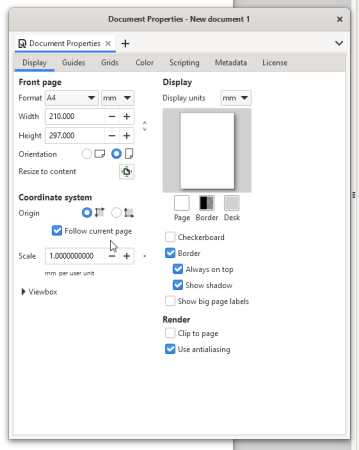 The coordinate system origin is now a property of the document rather than of Inkscape as a whole
-
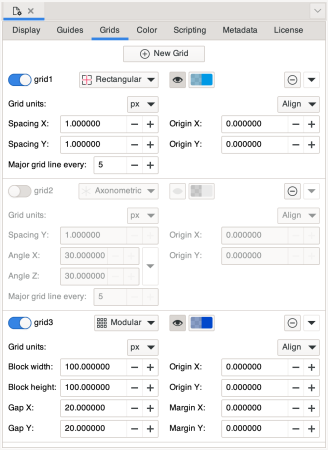 Updated user interface for Grids in Document Properties


Fill and Stroke Dialog
The Fill & Stroke has been updated, extended and refactored extensivels (MR #7748):
- General changes:
- The fill rule selector is now a single button that changes its look upon click.
- The height of the color bars has been reduced.
- The opacity slider now only allows to choose opacity in 5% steps, if you need more control, you must use the number field (scroll wheel works in 1 % steps, scroll wheel + Ctrl in 0.1 % steps)
- Gradient editor:
- Linear and Radial Gradients are now toggles of the same gradient option.
- The gradient stop list has been removed, there are now buttons to select the previous / next stop instead.
- The gradient rotation slider has been removed, but you can now click and drag on the number field to change the axis.
- Pattern selector:
- Hatches have moved from the 'Paint servers' dialog into the Pattern subsection.
- A couple new hatches have been added.
- New Advanced tab:
- New Recolor Selection feature that lets you change colors relative to each other when you have multiple objects selected
-
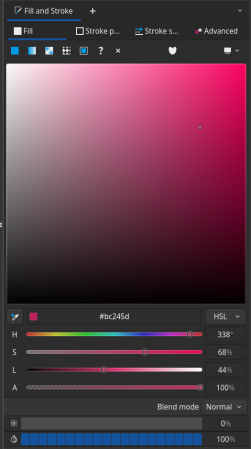 Fill tab
-
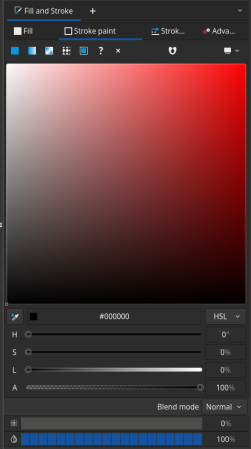 Stroke tab
-
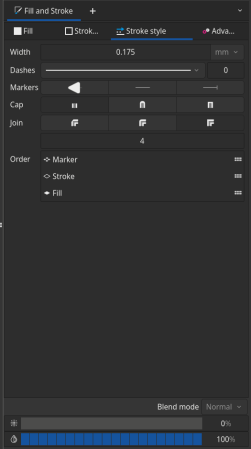 Stroke style
-
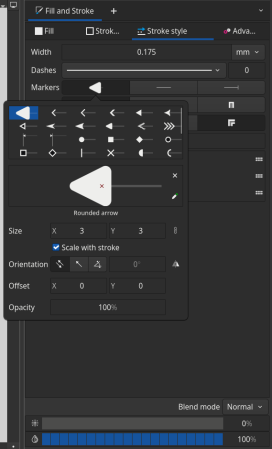 Markers popover
-
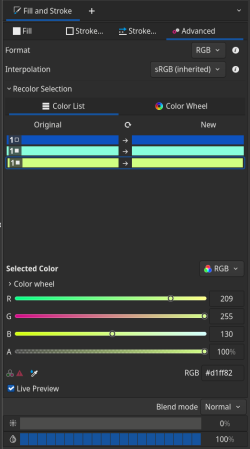 Recolor Selection - Color list
-
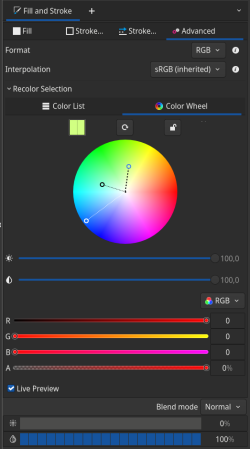 Recolor Selection - Color wheel


Recolor_selection.gif (too large for Wiki)
Object Properties Dialog
The Object Properties dialog has received a lot of updates, slowly shaping it into a quite comprehensive one-stop-shop for changing objects:
It now has fields for location, size, fill and stroke color, alpha, stroke width + unit, markers, path effects, opacity, blend mode, filters and – separately – blur (https://gitlab.com/inkscape/inkscape/-/merge_requests/8136, https://gitlab.com/inkscape/inkscape/-/merge_requests/6781)
Paint Servers Dialog
This dialog has been removed, hatches are now included in the Fill & Stroke dialog's pattern list.
Preferences Dialog
- An option to keep orphaned clones when deleting the original object (so the definition stays in the
<defs>section of the source code only) has been added in Edit > Preferences > Behavior > Clones > Deleting original: clones > Become orphans (https://gitlab.com/inkscape/inkscape/-/merge_requests/6852). - You can search for your favorite language in Edit > Preferences > Interface > Language (https://gitlab.com/inkscape/inkscape/-/merge_requests/6866).
- If you didn't like it that every file Inkscape creates is called 'drawing.svg' by default, you can now change that export file name in Edit > Preferences > Input/Output (https://gitlab.com/inkscape/inkscape/-/merge_requests/7801).
- You can now easily access the default template for editing from Edit > Preferences > Templates. The new default template will be saved in your user configuration directory, in the 'templates' folder, under the name 'default.svg'. There is currently no button to revert to the original default template in this dialog, so you would need to delete the file to get back to the original one (open the folder that contains it from Edit > Preferences > System > Templates, https://gitlab.com/inkscape/inkscape/-/merge_requests/8143).
- For testers and developers, it is a big help to see which Inkscape version one is working with currently, in the Inkscape window's title bar. This is now active by default (⚠️ TODO: check if this has changed at release time). You can turn it off in Edit > Preferences > Interface > Windows > Miscellaneous (https://gitlab.com/inkscape/inkscape/-/merge_requests/8118).
- The maximum number of undo steps is now configurable in Edit > Preferences > Behavior. By default, it is now limited, and the maximum number of undo steps is set to 200 (https://gitlab.com/inkscape/inkscape/-/merge_requests/6705).
- We (temporarily?) removed the ability to remember window position because GTK 4 / Wayland removed this upstream. Inkscape now only remembers the windows' sizes, not their position. This may result in unexpected placements of your Inkscape windows (https://gitlab.com/inkscape/inkscape/-/merge_requests/8051).
- The Preferences section about marker colors has been removed. It was no longer needed after Inkscape switched to context-fill and context-stroke for markers (https://gitlab.com/inkscape/inkscape/-/merge_requests/7487).
- The Autosave directory in Input/Output can now be opened and changed as well as reset with 3 new buttons.
- A new button in the System section allows to save the current preferences to disk (normally, they are saved when closing Inkscape). This is useful for development, but also for extensions to get the current (and potentially updated, but not yet saved) preferences state, instead of a stale one (https://gitlab.com/inkscape/inkscape/-/merge_requests/6799).
- The color for the wireframe that represents images in 'Outline' display mode can now be selected in the Imported Images section. The colors for clips, masks and paths/shapes can be set in the Rendering section (https://gitlab.com/inkscape/inkscape/-/merge_requests/7872).
- New developer options for drawing glyph boxes, debugging color fonts and debugging Cairo fonts have been added in the Rendering section ()
Selectors and CSS Dialog
Handling of CSS styling back-end was improved and is handled by libcroco. Dialog is now more stable and can handle elements such as @media (https://gitlab.com/inkscape/inkscape/-/merge_requests/7069).
Text and Font Dialog
- The old, non-unified font browser is now hidden by default, while the formerly experimental font browser is now what you will see when you open 'Text and Font'. The older version is still available from the dock's dialog selection button for those who need its functionality (https://gitlab.com/inkscape/inkscape/-/merge_requests/8286). - ⚠️ TODO: both just crash for me https://gitlab.com/inkscape/inbox/-/work_items/14026
- The preview font size slider now has an addition number input field (https://gitlab.com/inkscape/inkscape/-/merge_requests/8104).
- Sample texts in Feature tab are now left-aligned instead of centered (https://gitlab.com/inkscape/inkscape/-/merge_requests/8105).
Bug fixes
- When changing the font size for two simultaneously selected texts with different fonts no longer makes them use the same font (https://gitlab.com/inkscape/inkscape/-/merge_requests/8095)
- The Text tab's height no longer depends upon the Features' tab's height (https://gitlab.com/inkscape/inkscape/-/merge_requests/8103)
- Scrolling, filtering fonts, changing the preview size and switching the way the fonts are displayed (grid, rows) should be working faster and smoother now (https://gitlab.com/inkscape/inkscape/-/merge_requests/8110, https://gitlab.com/inkscape/inkscape/-/merge_requests/8112, https://gitlab.com/inkscape/inkscape/-/merge_requests/8115).
- The font size unit can now be set in the new Text & Font dialog (i.e. the unified font browser, https://gitlab.com/inkscape/inkscape/-/merge_requests/8011).
Transform Dialog
- A new button that creates a duplicate of the selected object(s) and transforms the duplicate has been added. This allows you to quickly create a series of rotated, scaled, sheared or moved objects (https://gitlab.com/inkscape/inkscape/-/merge_requests/6978).
Welcome Dialog
- When trying to open a recent file that does not exist anymore, Inkscape now notifies the user of this rather than failing silently, also when trying to open a recent file from the 'File' menu (https://gitlab.com/inkscape/inkscape/-/merge_requests/8029).
Status Bar
- The page selector now allows you to search for a page name or number. After the list of pages has been narrowed down, use the arrow keys to select the page from the list, and press Enter to center the view on the selected page (https://gitlab.com/inkscape/inkscape/-/merge_requests/8188, https://gitlab.com/inkscape/inkscape/-/merge_requests/8128).
- When selecting a page with the page selector, the zoom level no longer changes. The selected page is now only centered in view.
- There are two new buttons now for 'taking and toggling a canvas snapshots', allowing you to save the current view and return to it later, making it easier to navigate the document (https://gitlab.com/inkscape/inkscape/-/merge_requests/7433) - ⚠️ TODO: Cryptic naming, here's what this does: https://gitlab.com/inkscape/inbox/-/work_items/14027
Live Path Effects
Measure LPE
New measurement unit "meters" was added .
Templates
- Fix instructions in the US zine template (https://gitlab.com/inkscape/inkscape/-/merge_requests/7762)
- Removal of Twitter templates (https://gitlab.com/inkscape/inkscape/-/merge_requests/8204)
Symbols
Customization / Theming
Windows-specific Changes
macOS-specific Changes

- macOS fonts whose file names start with a dot (internal/special fonts) are now hidden from the font list, to remain consistent with conventions for apps on macOS (https://gitlab.com/inkscape/inkscape/-/merge_requests/7728)
- Use a different, reduced menu when no windows are open (https://gitlab.com/inkscape/inkscape/-/merge_requests/8199)
Extensions
Allow extensions to receive document updates, i.e. to run asynchronously (non-blocking)
https://gitlab.com/inkscape/inkscape/-/merge_requests/6958
Command line
- Add effect runner which accepts Variant dictionary arguments https://gitlab.com/inkscape/inkscape/-/merge_requests/7925
- Add shell equivalent for --export-page https://gitlab.com/inkscape/inkscape/-/merge_requests/7753
- Add a query-pages CLI option for getting page details https://gitlab.com/inkscape/inkscape/-/merge_requests/7112
- Extension error messages and other output are now always also printed on the command line, not only in the extension info dialog (https://gitlab.com/inkscape/inkscape/-/merge_requests/8196).
Inkview
Bugfixes
Fixed a crash …
- … when editing an object with a certain kind of markers with some specific Live Path Effects applied to it (https://gitlab.com/inkscape/inkscape/-/merge_requests/8304)
Behind the Curtains
Migration to GTK 4
https://gitlab.com/inkscape/inkscape/-/merge_requests/7481
https://gitlab.com/inkscape/extensions/-/merge_requests/702
https://gitlab.com/inkscape/inkscape/-/merge_requests/6807
Translations
- New language 'Amharic' added (https://gitlab.com/inkscape/inkscape/-/merge_requests/8086).
Contributing to interface translations
Want to help with translations? Learn how to help!
Documentation
Website
Important Inkscape Project Milestones
Important Changes for Packagers
Known issues
See
Other releases
- Inkscape 1.5 — development branch
- Inkscape 1.4 — current stable release branch (1.4.1, 1.4.2, 1.4.3, 1.4.4 next bugfix release)
- Inkscape 1.3 (1.3.1, 1.3.2)
- Inkscape 1.2 (1.2.1, 1.2.2)
- Inkscape 1.1 (1.1.1, 1.1.2)
- Inkscape 1.0 (1.0.1, 1.0.2)
- Inkscape 0.92 (0.92.1, 0.92.2, 0.92.3, 0.92.4, 0.92.5)
- Inkscape 0.91
- Inkscape 0.48 (0.48.1, 0.48.2, 0.48.3, 0.48.4, 0.48.5)
- Inkscape 0.47
- Inkscape 0.46
- Inkscape 0.45
- Inkscape 0.44
- Inkscape 0.43
- Inkscape 0.42
- Inkscape 0.41
- Inkscape 0.40
- Inkscape 0.39
- Inkscape 0.38
- Inkscape 0.37
- Inkscape 0.36
- Inkscape 0.35